
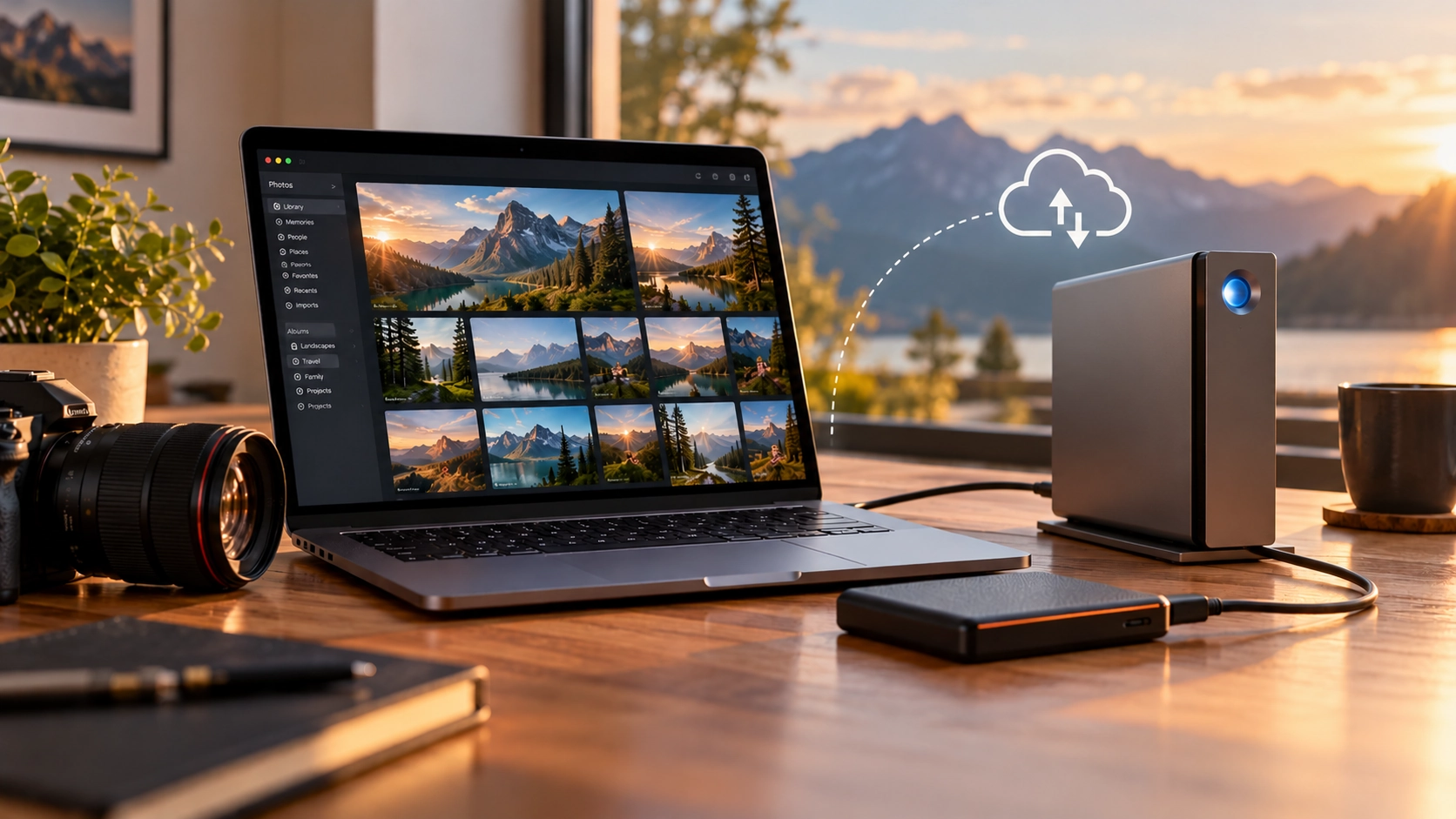
Your photos are irreplaceable. Your storage devices aren’t. Discover how the 3-2-1 backup rule helps protect your photo library against hardware failures, accidents, and unexpected data loss.
We take thousands of photos throughout our lives. Family celebrations, vacations, important milestones, and everyday moments gradually become a digital collection of memories.
But how safe are those memories?
Many people store their entire photo library on a single computer or external hard drive. Others rely on cloud storage, assuming their pictures are automatically protected.
Unfortunately, neither approach necessarily provides a complete backup strategy.
The good news? Protecting your photos doesn’t have to be complicated. One of the most widely recommended approaches is known as the 3-2-1 backup rule.
What Is the 3-2-1 Backup Rule?
The 3-2-1 rule is a straightforward concept designed to reduce the risk of losing important data.
It recommends maintaining:
- 3 copies of your data — Your original files plus two additional backup copies.
- 2 different types of storage — Avoid depending entirely on a single storage technology or device.
- 1 copy stored offsite — Keep at least one backup in a different physical location.
The principle is simple: a single failure, accident, or disaster should not be able to destroy every copy of your data.
Let’s look at each part in more detail.
3 — Keep Three Copies of Your Photos
Imagine that your entire photo library lives on an external hard drive connected to your Mac.
If that drive fails, is accidentally damaged, or gets lost, your photos may be gone forever.
Now imagine having two additional copies.
Your setup might look like this:
Copy 1: Your original photo library
Stored on your Mac or an external drive where you organize and edit your photos.
Copy 2: A local backup
Stored on another external drive or a NAS (Network Attached Storage).
Copy 3: An offsite backup
Stored securely with a cloud backup provider or at another physical location.
With three copies, losing one storage device doesn’t automatically mean losing your photos.
However, those copies should be independent. Three folders on the same physical drive don’t count as three reliable copies.
2 — Use Different Storage Types
Why does the rule recommend different types of storage?
Because storage technologies have different strengths, weaknesses, and failure modes.
For example:
- Internal SSDs: Fast and convenient for everyday work.
- External hard drives: Cost-effective for storing large photo libraries.
- NAS systems: Useful for centralized storage and local backups.
- Cloud storage: Provides geographic separation and access to data outside your home.
A practical setup might combine an SSD for your working library, an external hard drive for local backups, and cloud storage for offsite protection.
Using different storage types reduces your dependence on a single technology.
But there’s another important consideration: independence matters just as much as storage diversity.
Two separate drives can still be affected by the same power surge, theft, or accidental deletion. That’s why the third part of the rule is especially important.
1 — Keep One Backup Offsite
Imagine a fire, flood, burglary, or another event affecting your home.
Even if you have three copies of your photos, keeping all of them in the same room creates a significant risk.
An offsite backup solves this problem.
Traditionally, people rotated external hard drives between different locations. Today, cloud backup services make offsite protection much more convenient.
Depending on your needs, possible destinations include dedicated online backup services, object storage providers, or a separate physical location.
The important part is that your offsite copy remains available even if your primary storage location is compromised.
For particularly valuable photo collections, an additional offline or immutable backup can provide protection against ransomware and accidental deletion.
Syncing Is Not the Same as Backing Up
This is one of the most important distinctions in data protection.
Synchronization keeps files consistent between different locations.
For example, when you delete a photo from your Mac, a synchronization service may automatically delete it from your cloud storage as well.
That’s useful when you want all your devices to contain the same files.
But it can become a problem when something goes wrong.
If you accidentally delete an entire folder, corrupt a file, or make an unwanted change, those changes may be synchronized to every destination.
A proper backup system should provide a way to recover earlier versions or deleted files.
The key difference:
- Synchronization keeps destinations up to date.
- Backup allows you to recover data after something goes wrong.
Both are useful, but they serve different purposes.
When choosing a backup solution, look for features such as file versioning, retention policies, and protection against accidental deletions.
A Practical 3-2-1 Setup for Mac Users
Let’s consider a photographer using a Mac with a large collection of JPEG, HEIC, RAW, and DNG files.
A practical setup could look like this:
Your working library
Your original photo collection is stored on your Mac or a dedicated external SSD.
This is where you import, organize, edit, and manage your photos.
Your local backup
A separate external hard drive or NAS maintains a backup of your photo library.
This provides fast recovery if your primary drive fails.
For Mac users, Time Machine can be an excellent part of a local backup strategy, provided your photo library and its storage location are included in the backup.
Your offsite backup
A dedicated cloud backup service or appropriately configured cloud storage destination maintains an additional copy outside your home.
Ideally, this backup runs automatically and includes retention or versioning features.
With this setup, you have three copies across multiple storage technologies, including one offsite.
That’s the 3-2-1 principle in action.
The Most Common Backup Mistakes
Even a well-planned backup strategy can fail if it isn’t maintained properly.
Here are some common mistakes worth avoiding:
Keeping every copy connected all the time
A ransomware attack or accidental deletion may affect multiple accessible storage locations. An offline or immutable backup adds another layer of protection.
Assuming RAID is a backup
RAID can improve availability and protect against certain drive failures, depending on its configuration. However, it doesn’t protect against accidental deletion, corruption, theft, or many other risks.
Never testing your backups
A backup that cannot be restored is not a useful backup.
Periodically restore a few photos to verify that your files are intact and accessible.
Relying entirely on manual backups
It’s easy to forget to connect an external drive or copy recently imported photos.
Automation helps reduce the risk of gaps in your backup history.
Ignoring cloud retention policies
Not every cloud service keeps deleted files or older versions indefinitely. Understand what happens when files are changed, deleted, or become inaccessible.
Beyond 3-2-1: The 3-2-1-1-0 Approach
As data protection requirements have evolved, some backup professionals have extended the traditional rule.
One variation is called 3-2-1-1-0.
It adds two recommendations:
- 1 additional offline, air-gapped, or immutable copy, protected against unwanted changes.
- 0 unverified backup errors, achieved through monitoring, integrity checks, and regular recovery testing.
For personal photo collections, this may sound excessive.
But consider how much your pictures mean to you.
You can replace a computer, buy another hard drive, or reinstall an application. You cannot recreate a photograph of a moment that will never happen again.
The more valuable your collection becomes, the more worthwhile additional protection can be.
Make Backups a Habit — Not a Chore
The biggest challenge with backups often isn’t technology.
It’s consistency.
A backup strategy only works if it continues protecting your data over time.
Automated backups, multiple independent destinations, monitoring, and occasional recovery tests help make data protection part of your normal workflow.
And that’s precisely the thinking behind PicShuttle.
PicShuttle is being developed as a macOS application designed to help keep photo collections synchronized across multiple storage destinations, including local storage and cloud services.
The goal is to make managing multiple photo copies easier, without requiring you to manually transfer files between different locations.
Of course, synchronization alone isn’t a substitute for a versioned, recoverable backup. A complete 3-2-1 strategy still depends on choosing destinations and retention mechanisms that protect your data when something goes wrong.
Final Thoughts
The 3-2-1 backup rule has remained relevant for a reason: it’s simple, flexible, and effective at reducing the risk of permanent data loss.
You don’t need expensive enterprise equipment or a complicated storage infrastructure to get started.
Begin with one additional local backup. Add an offsite copy. Automate the process wherever possible. And remember to test your backups.
Because the best time to protect your photos is before something happens to them.
Your memories deserve more than one destination.
Interested in simpler ways to manage multiple copies of your photo library? Follow the development of PicShuttle and subscribe to our newsletter for future updates.